Setting Up Your Organization#
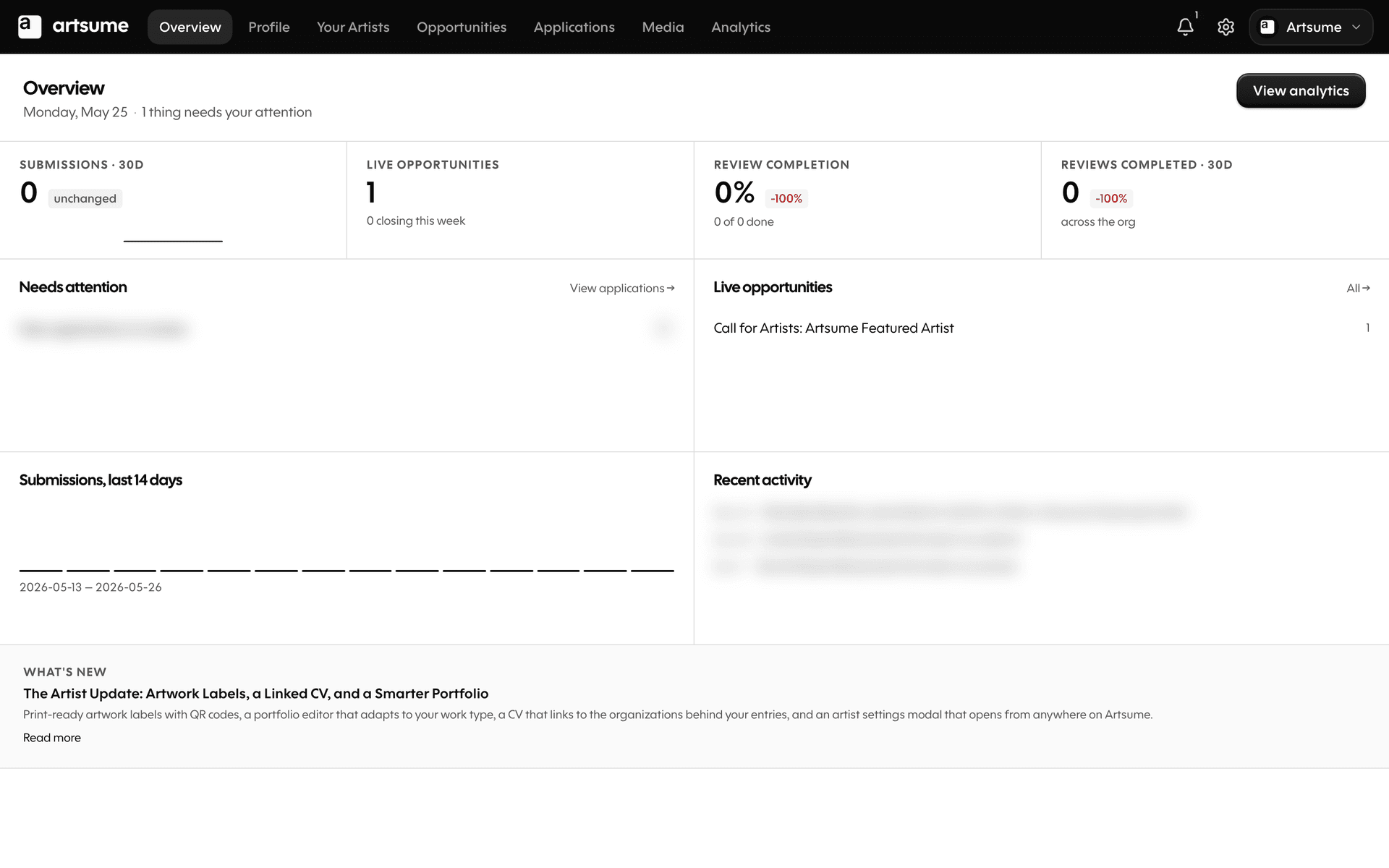
This guide will help you set up your organization profile on Artsumé, invite team members, configure settings, and get started with managing opportunities and applications.
Introduction#
Artsumé helps organizations manage opportunities, review applications, and collaborate with team members efficiently. This guide covers everything you need to set up your organization and start using Artsumé effectively.
Prerequisites#
Before setting up your organization, you should have:
- A valid email address
- Organization information (name, type, description)
- Logo image (optional but recommended)
- Basic information about your organization
- Understanding of your organization's needs
Step 1: Create Your Organization#
Initial Setup#
- Log in to your Artsumé account (or create one)
- Navigate to "Organizations" from the main menu
- Click "Create Organization"
Organization Information#
Fill in the required information:
-
Organization Name: Your organization's full name
- Use the official name
- This appears on all your opportunities
-
Organization Type: Select the type that best describes you:
- Gallery (Commercial or Online)
- Museum
- School/University
- Foundation
- Association
- Collective
- Residency Program
- Arts Council
- Artist-Run Center
- Public Works
- Corporate
- Other
-
Slug: Your organization's URL identifier (e.g.,
contemporary-gallery)- Auto-generated from name, but you can customize
- Must be lowercase, letters, numbers, and hyphens only
- Cannot be changed for 30 days after creation
Slug Selection
Choose your slug carefully. It becomes part of your organization's URL (e.g., artsume.com/o/your-slug). Make it memorable and professional. You can change it later, but there's a 30-day cooldown period.
- Description: Brief description of your organization (max 120 characters)
- This appears in search results and listings
- Make it concise and informative
Step 2: Complete Your Organization Profile#
After creating your organization, complete your profile:
Basic Information#
-
Long Description: Extended description of your organization
- Detailed information about your mission, history, and focus
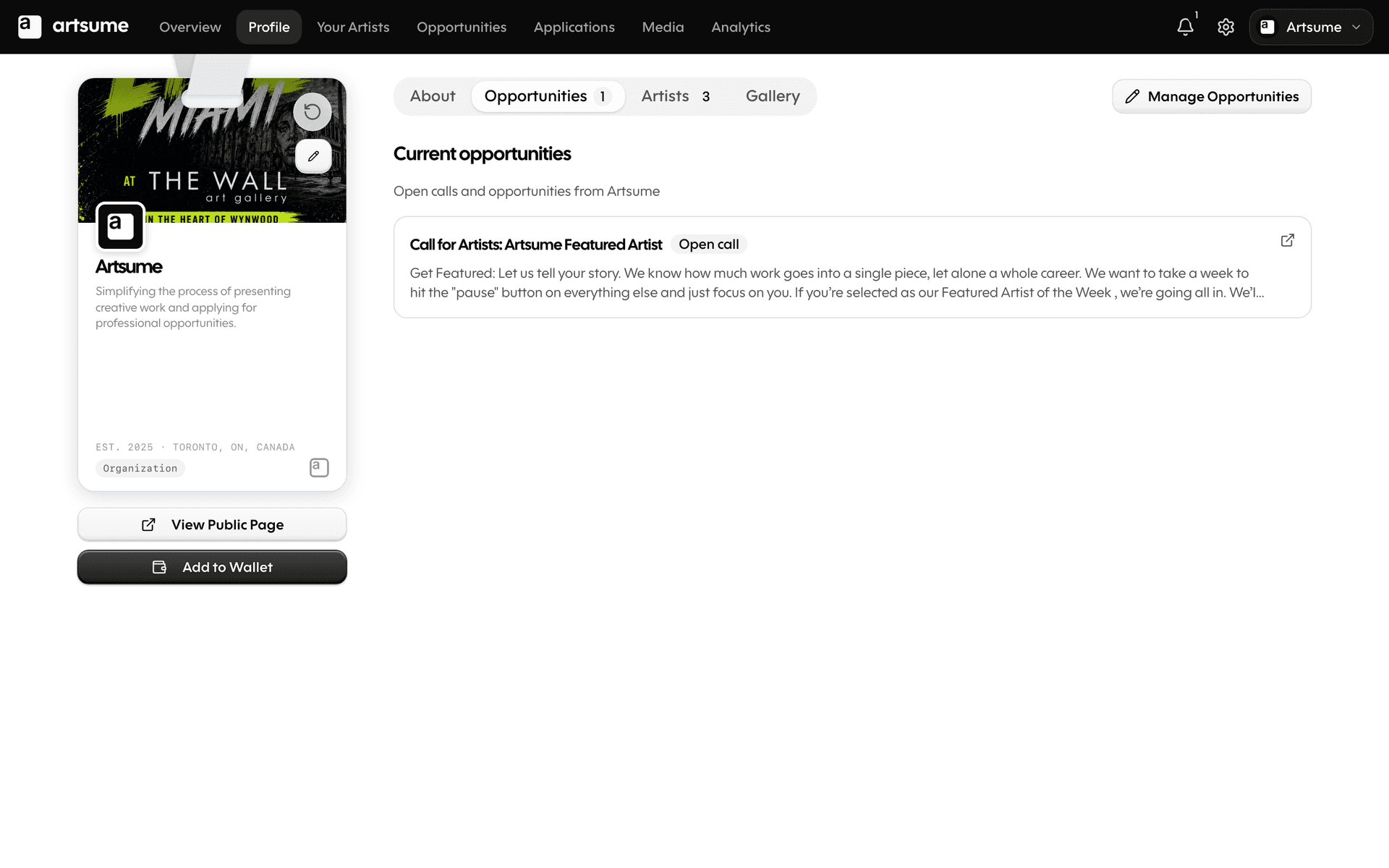
- This appears on your organization's public profile
-
Location: Add your organization's location
- City: Your city
- State/Province: State or province
- Country: Your country
- Full Address: Complete address (optional)
-
Website: Your organization's website URL
- Include full URL (https://example.com)
- This links from your Artsumé profile
-
Year Founded: Year your organization was founded
- Helps establish credibility and history
Visual Identity#
-
Logo: Upload your organization logo
- Recommended size: 400x400 pixels
- Supported formats: JPG, PNG, WebP
- Maximum file size: 5MB
- Appears on your profile and opportunities
-
Banner Image: Upload a banner image
- Recommended size: 1600x400 pixels
- Showcases your organization visually
- Appears at the top of your profile page
- Custom Color: Set a custom brand color (optional)
- Hex color code (e.g., #FF6B35)
- Used for branding elements like lanyards and card borders
- Helps maintain brand consistency
Social Media#
Add your social media links:
- Click "Add Social Media Link"
- Select platform:
- Twitter/X
- Other
- Enter your profile URL
- Save
Step 3: Set Organization Visibility#
Control who can see your organization:
-
Navigate to "Settings" → "Visibility"
-
Choose visibility level:
-
Public: Anyone can view your organization
- Best for: Organizations seeking applicants and visibility
- Appears in search results
-
Private: Only team members can see it
- Best for: Internal use only
- Still functional for managing opportunities
-
Unlisted: Only people with the direct link can view it
- Best for: Selective visibility
- Won't appear in public search
-
Visibility Settings
Public visibility helps artists discover your organization and opportunities. Choose public unless you have specific reasons for privacy.
Step 4: Invite Team Members#
Build your team to collaborate on opportunities and reviews:
- Navigate to "Team" from your organization dashboard
- Click "Invite Team Member"
Team Member Roles#
Choose the appropriate role for each team member:
- Owner: Full control, can manage billing and delete organization
- Admin: Can manage opportunities, team, and settings (except billing)
- Staff: Can create and manage opportunities
- Reviewer: Can review applications only
Invitation Process#
-
Enter team member's email address
-
Select their role
-
Add optional message
-
Click "Send Invitation"
-
Team member receives email invitation
-
They accept and join your organization
Team Management
Start with a small team and add members as needed. You can always change roles later. Consider starting with Admin or Staff roles for most team members, reserving Owner for yourself.
Step 5: Configure Organization Settings#
General Settings#
- Navigate to "Settings" → "General"
- Configure:
- Organization name and slug
- Contact information
- Default timezone
- Language preferences
Notification Settings#
Set up how your team receives notifications:
- Go to "Settings" → "Notifications"
- Configure email and in-app notifications for:
- New applications
- Application status changes
- Review assignments
- Review submissions
- Opportunity publications
- Daily digests
Notification Preferences
Configure notifications to stay informed without being overwhelmed. Use daily digests for less urgent updates, instant notifications for important events like new applications.
Step 6: Set Up Subscription and Billing#
Choose a Subscription Tier#
Artsumé offers different subscription tiers:
-
Navigate to "Settings" → "Billing"
-
Review available tiers:
- Free: Basic features, limited opportunities
- Starter: More opportunities and features
- Professional: Advanced features, unlimited opportunities
- Enterprise: Full features, custom solutions
-
Select the tier that fits your needs
-
Complete billing information
-
Activate subscription
Subscription Selection
Start with a lower tier and upgrade as needed. You can change your subscription at any time. Consider your expected number of opportunities and applications when choosing.
Payment Configuration#
If you'll collect application fees:
- Set up Stripe Connect account
- Complete onboarding process
- Configure payment settings
- Test payment flow
Step 7: Create Your First Opportunity (Optional)#
While not required for setup, creating a test opportunity helps you understand the system:
- Navigate to "Opportunities" → "Create New"
- Fill in basic information
- Save as draft
- Review the opportunity creation interface
Learning the System
Creating a test opportunity helps you understand how the system works. You can delete it later. This is especially helpful before creating your first real opportunity.
Step 8: Review Organization Profile#
Before going live:
-
Click "Preview Profile" to see your public profile
-
Review all sections:
- Information accuracy
- Image quality
- Link functionality
- Overall presentation
-
Make any necessary edits
-
Publish your profile when ready
Organization Setup Checklist#
Use this checklist to ensure complete setup:
- Organization created with correct name and type
- Slug selected and confirmed
- Profile information completed (description, location, website)
- Logo uploaded
- Banner image uploaded (optional)
- Custom color set (optional)
- Social media links added
- Visibility settings configured
- Team members invited (if applicable)
- Notification settings configured
- Subscription activated
- Payment configured (if collecting fees)
- Profile reviewed and published
Examples#
Example: Complete Organization Setup#
Organization Name: "Contemporary Art Gallery"
Type: Commercial Gallery
Slug: contemporary-art-gallery
Location: New York, NY, USA
Description: "Exhibiting emerging and established contemporary artists since 2015"
Team:
- Owner: Gallery Director
- Admin: Assistant Director
- Staff: Gallery Manager
- Reviewer: Curator
Subscription: Professional Tier
Status: Public, Active
Example: Minimal Setup#
Organization Name: "Local Arts Council"
Type: Arts Council
Slug: local-arts-council
Location: Small Town, State, USA
Description: "Supporting local artists and arts programming"
Team: Owner only
Subscription: Free Tier
Status: Public, Active
Troubleshooting#
Frequently Asked Questions
Next Steps#
After setting up your organization:
- Create Your First Opportunity: Start posting opportunities for artists
- Set Up Review Process: Configure reviewer pools and rubrics
- Customize Forms: Create application forms tailored to your needs
- Read More Guides:
Congratulations on setting up your organization! You're now ready to start posting opportunities and working with artists. Take time to explore the features and customize your organization to fit your needs.